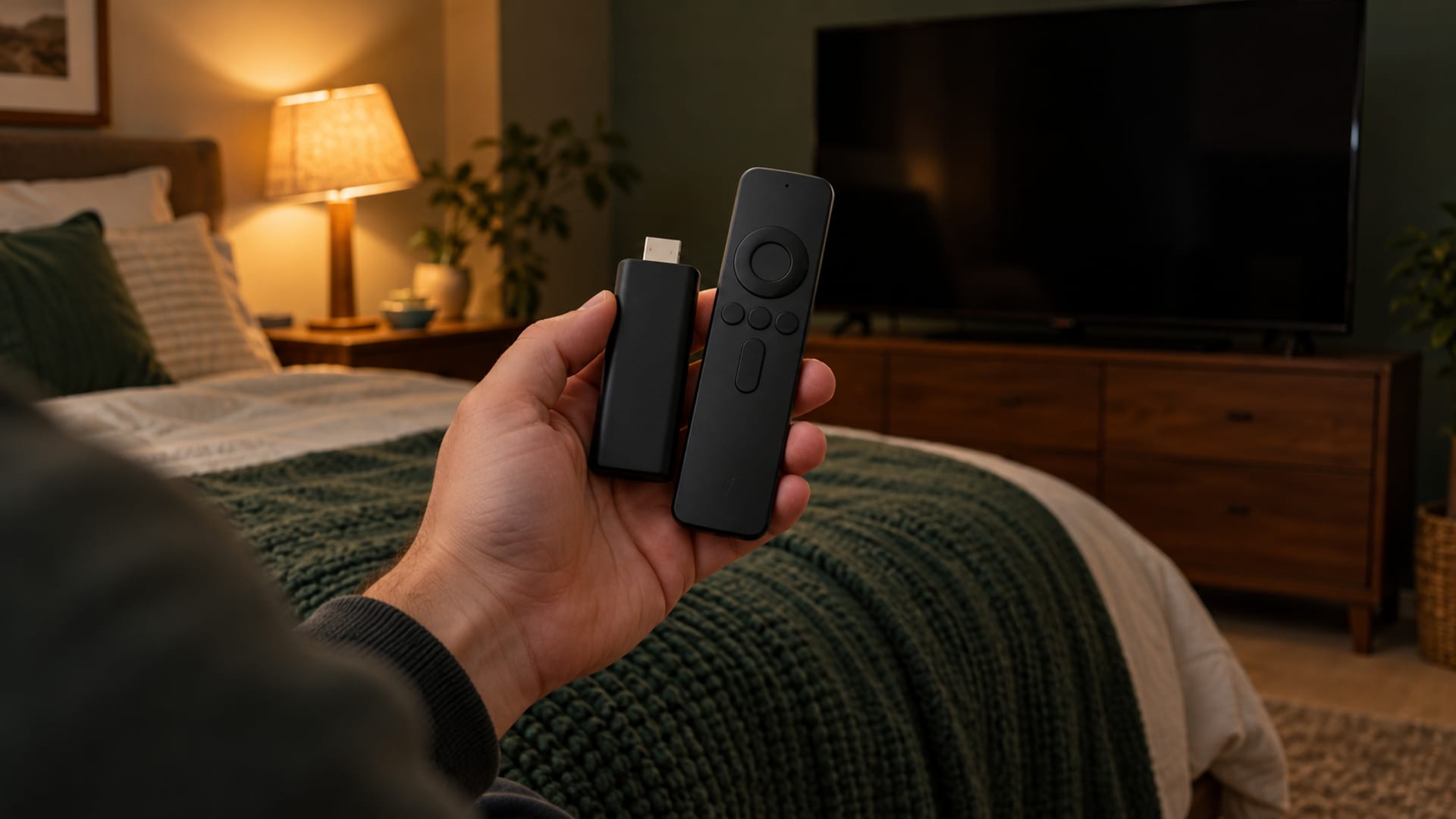


A Samsung TV usually cannot install a native VPN app because Samsung TVs use Tizen, and Samsung allows only apps listed in the TV’s own App Store. The practical choices are a VPN-configured router for full VPN protection, Smart DNS for compatible streaming without encryption, or a Windows VPN hotspot for a temporary setup.
Start by checking the TV model, Tizen interface, network connection, and the provider’s current device-support page. Search the TV’s Apps screen, but do not apply an Android TV installation path to a Samsung Tizen TV.
Key takeaways
- Use a VPN router when the TV needs an encrypted VPN connection.
- Use Smart DNS when compatible streaming matters but encryption does not.
- Use a Windows VPN hotspot when you want to avoid changing the home router.
- Confirm router, Windows, protocol, device, refund, and renewal terms before paying.
- A VPN changes the IP address websites see, but it does not remove cookies, accounts, or device fingerprints.
Does a Samsung TV Need a VPN App?
No. A Samsung smart TV does not need a native VPN app to use a VPN connection, but the VPN must run on another supported device or network component. Samsung TVs use the Tizen operating system, and Samsung says only apps available in the TV’s App Store can be installed.

The provider documentation for NordVPN, Surfshark, ExpressVPN, and Proton VPN describes other routes for Samsung Tizen. NordVPN lists router setup, a Windows mobile hotspot, Windows wireless sharing, and Ethernet sharing. Surfshark identifies Samsung Tizen as a platform without a native VPN app and points users toward a router or Windows sharing. ExpressVPN describes Samsung Smart TV as a device for manual configuration through MediaStreamer or a compatible router. Proton VPN documents router support, while its TV app documentation applies to Android TV and Google TV.
Open the Samsung TV’s Apps screen and search for your provider. If it does not appear, check the provider’s current support page for your exact TV model and region.
A VPN encrypts the connection between the device and the VPN server and changes the IP address websites see. It does not remove account identifiers, cookies, pixels, device fingerprints, or location signals such as GPS. On a Samsung TV, the VPN features must come from the router or computer carrying the TV’s connection.
Choose the Right Method for Your Samsung TV
Choose a VPN router when the TV needs full VPN encryption and you want other household devices to use the same connection. Choose Smart DNS when your main goal is compatible streaming and encryption is not required. Choose a Windows VPN hotspot when you want to try the setup without changing the home router.
A VPN router places the VPN connection at the network level. After the router connects to a provider, the Samsung TV uses the router’s Wi-Fi or wired connection. The router can cover several devices, but its hardware may reduce speed. Router settings usually affect every connected device unless the router supports selective routing. Some app-level features, such as split tunneling or a kill switch, may not be available through a router.
A Windows hotspot shares a VPN connection from a Windows computer with the TV. This is useful for a single TV or a short-term setup, but the computer must remain available, connected, and configured correctly. NordVPN says its Windows hotspot method requires OpenVPN TCP or UDP rather than NordLynx. Proton VPN also says Windows connection sharing requires OpenVPN because it creates the separate VPN network adapter needed for sharing.
Smart DNS changes how domain requests are handled. It does not create an encrypted VPN tunnel, change the TV’s IP address in the same way, or provide the privacy benefits of a VPN. It can be a good fit for streaming compatibility when the provider supports the TV and service you want to use.
Before subscribing, confirm the provider’s current router support, supported protocol, free-plan limits, Windows version, and refund terms. Most ISP-supplied routers do not support VPN client configuration. Flashing unsupported firmware can stop a router from working, so check the exact model documentation first.
What It Costs and What Renews
Prices vary by region, tax, payment channel, promotion, and billing view. These are U.S. prices, checked November 12, 2026. A free tier, a free trial, and a money-back guarantee are separate things.
NordVPN offers a 30-day money-back guarantee and supports up to 10 simultaneous devices, but the Samsung TV still needs a router or Windows sharing path. Its subscriptions renew automatically, and NordVPN says prices can change with advance notice.
ExpressVPN offers a 30-day money-back guarantee for new users. Its two-year prices include four extra months, so keep the 24-month and 28-month figures separate when you compare. Purchases through iOS and Android apps follow Apple or Google refund policies rather than ExpressVPN’s own guarantee. Read the final checkout screen for the region, billing interval, upfront charge, renewal amount, taxes, and refund channel.
Proton VPN Free is a free tier, not a free trial. Proton says router connections are available on all Proton VPN plans, including Proton Free, but the router must support OpenVPN or WireGuard as a client. For a paid plan, VPN Plus is $9.99 a month, or $35.88 for the first 12 months ($2.99 a month), then $83.88 every 12 months. Paid plans carry a 30-day money-back guarantee.
Surfshark discontinued Smart DNS on February 2, 2026. If you are considering Surfshark for a Samsung TV, use its router or Windows-sharing setup, and confirm the renewal amount at checkout.
Set Up a VPN Router for Samsung Tizen
A VPN router is the best fit when the Samsung TV should receive full VPN encryption and other devices should use the same VPN connection. The tradeoff is that the router can affect the whole household network, and changing servers may require changing the router profile instead of tapping a server in an app.
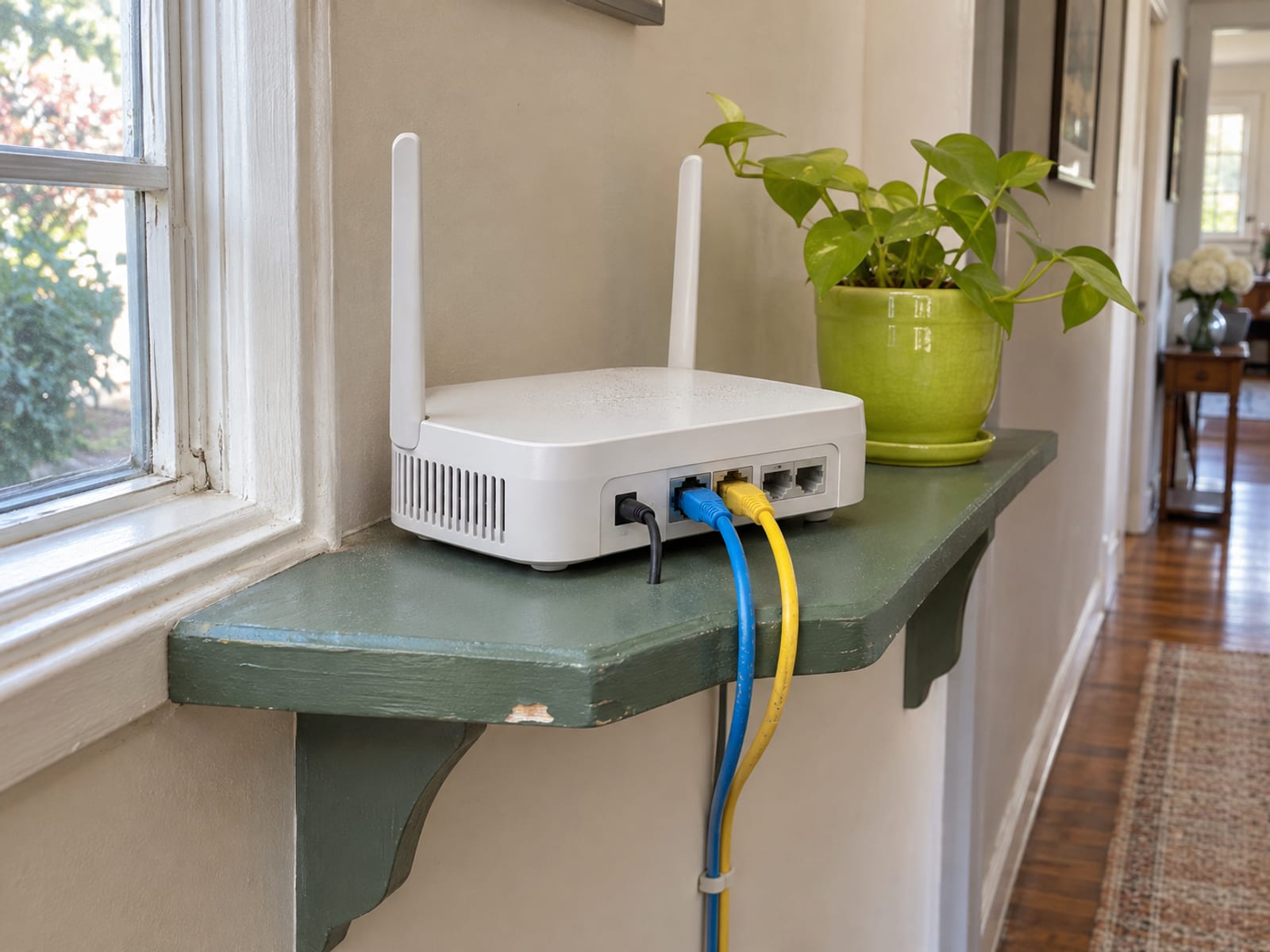
First, confirm that the router supports VPN client configuration. Proton says the router must support OpenVPN or WireGuard as a client. Then obtain the provider’s current configuration details for the protocol and server you want to use.
Follow this sequence:
- Sign in to the router’s administrator page and open its VPN client section.
- Add the provider’s OpenVPN or WireGuard profile.
- Enter any username, password, certificate, or key the provider requires.
- Activate the router VPN connection and wait for the router to report a connected state.
- Connect the Samsung TV to that router’s Wi-Fi or wired network.
- Open the TV apps you normally use and confirm that they still connect.
- If an app stops working, disable the router profile or switch to another supported server.
The connected state normally appears in the router’s VPN section, not as a VPN icon inside the Samsung TV interface. The TV simply shows a network connection. A router VPN can cause buffering when the router is weak or the server is distant, so compare normal app playback before and after the connection.
Router routing can affect every device. A router may also remove features found in a provider’s phone or computer app, including split tunneling, server search, and some filtering tools. If you want to compare whole-network routing with a single-device workaround, read VPN on a router vs a device.
If the router has no VPN client option, do not assume that a firmware change will solve it. Check the router maker’s current documentation and the provider’s supported-model list. A Windows hotspot is usually the next practical path.
Smart DNS on Samsung TV: What It Does and What It Does Not
Smart DNS can fit a Samsung TV when the goal is compatible streaming and you do not need encryption. It changes DNS handling so selected services can process the connection differently, but it does not encrypt traffic, provide the privacy benefits of a VPN, or guarantee access to a particular streaming catalogue.
NordVPN integrates Smart DNS into SmartPlay. Its instructions require you to allowlist your public IPv4 address, activate Smart DNS, and enter the supplied DNS addresses on the TV. NordVPN says Smart DNS may not work with every streaming service.
ExpressVPN’s MediaStreamer works with Samsung Smart TV. The setup requires registering the public IP address, obtaining the assigned MediaStreamer DNS addresses, and entering them in the TV’s DNS settings. ExpressVPN says MediaStreamer is not a VPN, does not encrypt traffic, and cannot change locations.
Surfshark discontinued Smart DNS on February 2, 2026. Existing users must restore automatic DNS or use another supported DNS configuration.
Samsung’s U.S. DNS path is:
- Open All Settings.
- Select Connection, then Network.
- Select Network Status, IP Settings, and DNS Setting.
- Choose Enter Manually, then DNS Server.
- Enter the DNS address supplied by the provider.
- Save the setting and reconnect the TV.
Some models place Network under General settings. Samsung’s model-era paths vary, so check the TV’s own menu if the labels differ. Google’s 8.8.8.8 and 8.8.4.4 addresses are public DNS addresses for troubleshooting, not a VPN or Smart DNS service.
Use a Windows VPN Hotspot Instead
A Windows VPN hotspot suits a reader who wants to connect one Samsung TV without changing the home router. The tradeoff is that the Windows computer must stay on, connected to the internet, and configured for sharing.

Install the provider’s Windows app, sign in, and connect to a server. Then open Windows Settings, select Network & Internet, and open Mobile hotspot. Share the computer’s connection over Wi-Fi and create a distinct hotspot name and password.
The VPN adapter must share its connection with the hotspot. In Windows, open the network adapter settings, locate the VPN adapter, open its properties, select the sharing controls, and allow the adapter to share the connection with the hotspot network. Connect the Samsung TV to the new Wi-Fi network.
Use OpenVPN, not NordLynx, with NordVPN, and OpenVPN with Proton VPN. Surfshark documents Windows VPN sharing as an alternative to router setup.
When the setup works, the TV shows the hotspot as a normal Wi-Fi network. The VPN connection state appears in the computer’s app. Open the TV’s normal apps, check streaming playback, and disconnect the hotspot if the computer loses its own connection.
A Mac route depends on the provider. Proton says macOS sharing would require OpenVPN, which its macOS app no longer supports. Check your provider’s Mac support page before relying on a Mac.
Streaming, Legal, and Terms Limits
A VPN can change the IP address that a streaming service sees, but it does not override regional licensing or service terms. Netflix says a VPN can make a device or network appear to connect from another location. Netflix may then show only titles with worldwide licensing and may require the VPN to be turned off before regional titles appear.

Netflix also says VPN use is unsupported for live events and ad-supported viewing. If Netflix displays a VPN or proxy message, its published action is to disable the VPN and try again. Work through the Netflix proxy error fixes if the TV shows that message.
Smart DNS has a different limitation. It does not encrypt the TV’s connection, and no provider can promise that every streaming service will work with it.
A VPN also does not make you anonymous or stop every form of tracking. Accounts, cookies, pixels, fingerprints, and other identifiers can still connect activity to you. The Electronic Frontier Foundation says a VPN can protect traffic from some local-network surveillance, while the VPN provider can see traffic that passes through its service.
Follow the law where the TV is located and the current terms of the service you use. NordVPN says its service must not be used to bypass copyright regulations. Surfshark says illegal activity is prohibited and use must comply with applicable law and the terms of accessed services. A VPN does not remove those limits.
Before paying, compare the first charge with the renewal price and check whether the refund policy applies to your payment channel. Before installing, confirm the provider supports your router, Windows version, protocol, and TV network arrangement. Then test the chosen route with the TV connected and check the streaming services you actually use.
Frequently asked questions
Does Samsung have a built-in VPN?
Samsung’s Tizen TV platform has no native VPN app from the major providers. Use a compatible VPN router, a supported Windows hotspot, or Smart DNS when encryption is not required.
Which VPN is available on Samsung TV?
NordVPN, Surfshark, ExpressVPN, and Proton VPN document router or sharing methods rather than a native Samsung Tizen app. Search the TV’s Apps screen and confirm the provider’s current support page for your exact model and region.
Can I add a VPN to my Samsung TV?
Yes, indirectly. Connect the TV to a VPN-configured router or VPN-protected Windows hotspot, or configure a supported Smart DNS service through the TV’s DNS settings.
Can I use the NordVPN app on my Samsung TV?
NordVPN has no Samsung Tizen app. Its Samsung TV options include a VPN router, Windows mobile hotspot, Windows wireless sharing, and Ethernet sharing.
Is there a free VPN for Samsung TV?
Proton VPN says router connections are available on all Proton VPN plans, including Proton Free. The router still needs to support OpenVPN or WireGuard as a client, and Proton Free is a free tier rather than a free trial.
Should I use a VPN for my smart TV?
Use a VPN when the TV needs an encrypted connection or when you want to manage the connection centrally through a router. Use Smart DNS when streaming compatibility is the goal and encryption is not required.
Can Netflix detect that you are using a VPN?
Netflix says a VPN can make the device or network appear to connect from another location, and it may show only titles with worldwide licensing. Netflix may ask you to turn off the VPN, especially when regional titles, live events, or ad-supported viewing are involved.
Will a VPN change my Samsung TV’s location?
A VPN changes the IP address websites see, but it does not change every location signal or guarantee a different streaming catalogue. Accounts, cookies, device fingerprints, and service licensing rules can still affect the result.
What should I do if the VPN path is missing?
Search the Samsung TV Apps screen, confirm the provider’s current support page, and check the router’s VPN client features. If the router is unsupported, use a Windows VPN hotspot, or use Smart DNS when encryption is not part of the requirement.
For the next decision, compare how much a VPN costs per month or check how to use a VPN on a smart TV for another supported TV platform.
Glossary
Find more VPN guides on Tunnel Verdict. Have a question about your own setup? Contact us and include your device and the VPN you use.