

The setup depends on the TV’s operating system. Android TV, Google TV, and Fire TV usually let you install a compatible VPN app, sign in, and connect. Samsung Tizen, LG webOS, and Roku generally need a VPN router, VPN-enabled hotspot, Smart DNS, or an external streaming device.
Start by opening Settings and identifying the TV platform and software version. Then confirm that the VPN provider supports that exact platform, decide whether you need full VPN protection or only Smart DNS for supported streaming access, and check the renewal price before paying.
Key takeaways
- Install a compatible VPN app directly on Android TV, Google TV, or Fire TV.
- Use a router, hotspot, Smart DNS, or external streaming device for Samsung, LG, and Roku.
- A VPN encrypts the TV’s connection to the VPN server and changes the IP address websites see.
- Smart DNS can help with supported streaming access, but it does not encrypt traffic.
- Check streaming-service terms, router compatibility, device limits, and renewal pricing before subscribing.
Which Smart TVs Support VPN Apps?
The TV brand does not tell you the full setup story. The operating system does. Android TV and Google TV support VPN apps through Google Play when the provider supports the device and software version. NordVPN documents Android TV installation through Google Play, while ExpressVPN lists Android TV and Chromecast with Google TV among its supported streaming platforms.

Amazon Fire TV and Fire TV Stick also support VPN apps. ExpressVPN lists both platforms, and NordVPN documents a Fire TV app. On these devices, the normal route is to open the app store, search for the provider, install the app, sign in, and connect to a server.
Samsung Smart TVs generally run Tizen and do not support ordinary native VPN apps. LG Smart TVs generally run webOS and also do not provide native VPN-app support. ExpressVPN places LG Smart TV under manual configurations rather than its app-supported smart TV platforms. For Samsung and LG, the practical choices are a compatible router, a VPN-enabled hotspot, Smart DNS where supported, or an external streaming device.
Roku does not support VPN apps directly according to ExpressVPN’s supported-device documentation. A Roku TV therefore needs a VPN router or another VPN-protected network. You can also connect a Fire TV Stick or Chromecast with Google TV to an HDMI port and run the VPN app there instead.
Check the exact model and software version before subscribing. A provider may support an external Android TV device connected to a television while not supporting the television’s built-in operating system.
What Is the Best Setup Route for Samsung, LG, Android TV, Google TV and Roku?
For Android TV, Google TV, or Fire TV, use the native app route. Open the device’s app store, search for the VPN provider, install the official app, and sign in. Select a server location and press Connect. The provider’s guide should match the TV model and software version, especially if the device uses a customized version of Android.
A connected VPN usually shows a status such as Connected, a green indicator, or a server location inside the app. Some apps display the assigned IP address or connection time. Open a streaming app only after the VPN app shows an active connection. If the VPN disconnects, the TV returns to its ordinary network unless the app or operating system provides a relevant always-on setting.
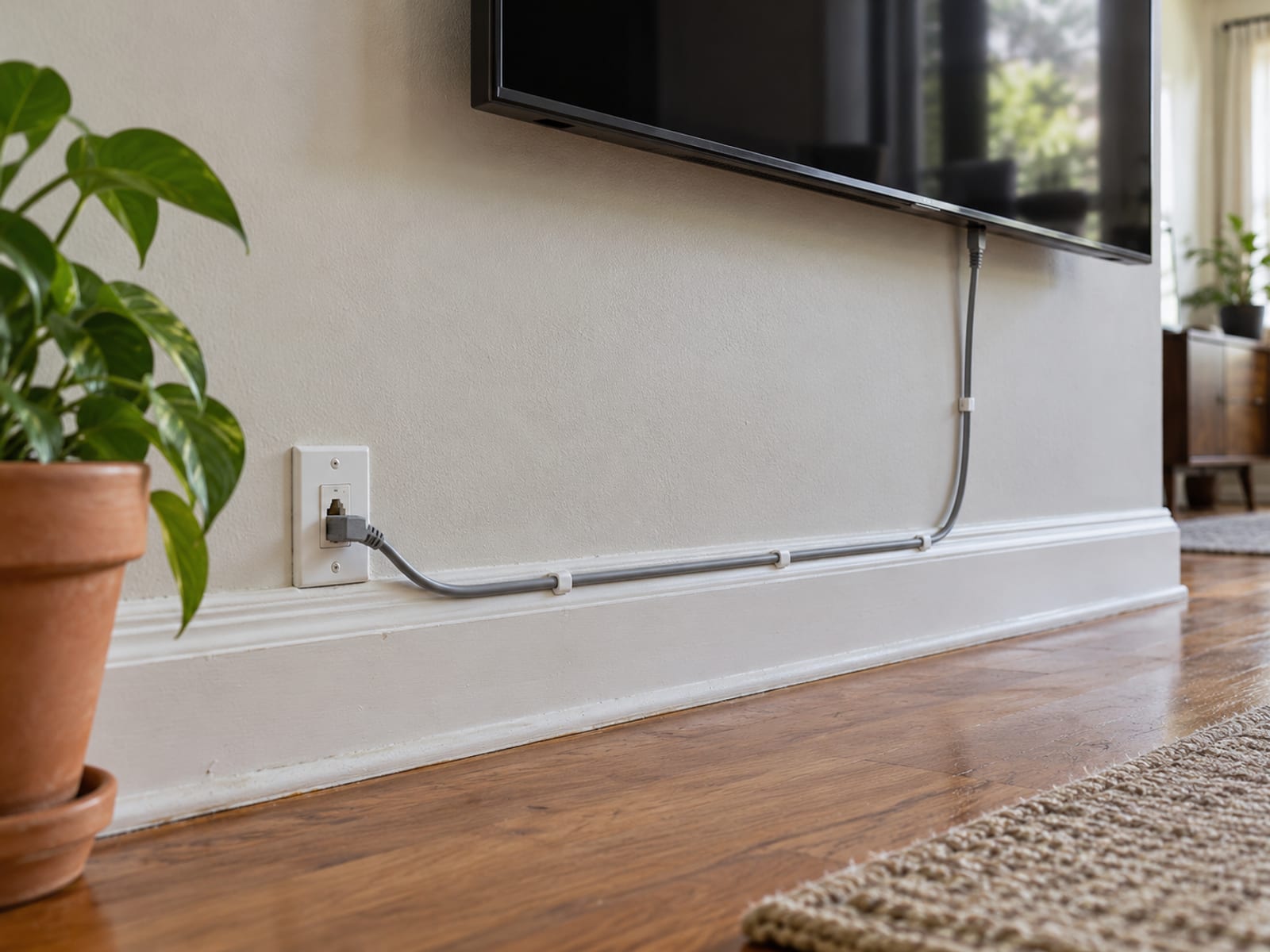
Samsung Tizen needs a different route. The fullest option is a compatible VPN router. Configure the VPN on the router, then connect the Samsung TV by Wi-Fi or Ethernet. The TV’s traffic follows the router’s VPN connection without requiring a VPN app on Tizen.
A VPN-enabled hotspot can work when you do not want to change the home router. Surfshark documents a Windows PC and hotspot route for Samsung TVs. Run the VPN on the computer, share that connection, and connect the TV to the new hotspot. The computer must remain available for the hotspot to work.
LG webOS uses the same broad options: a VPN router, a VPN-enabled hotspot, supported Smart DNS, or an external streaming device. The TV’s menu names vary by model and software version, so use the provider’s current LG instructions before changing network settings.
Roku requires a VPN router or another VPN-protected network because Roku does not support VPN apps directly. If you prefer an app-based setup, an external Fire TV Stick or Chromecast with Google TV can provide that route. For Roku-specific setup choices, use How to Use a VPN With a Roku.
Should You Use a Router VPN, Smart DNS, Hotspot or Streaming Device?
A router VPN is the broadest option for a TV without a native app. Once the router connects to the VPN, the TV uses that route over Wi-Fi or Ethernet. Other devices on the same network may use it as well, including devices that do not need a VPN. That wider coverage can be useful, but it can also affect services that work better without VPN routing.
Smart DNS is lighter and usually simpler. You enter the provider’s DNS addresses in the TV’s network settings, allowing selected streaming services to handle location-related requests through the provider’s DNS system. Smart DNS does not encrypt the TV’s traffic and does not provide the same privacy or security protection as a VPN. NordVPN says Smart DNS activation may take up to 10 minutes and requires IP allowlisting.
A VPN-enabled hotspot is useful when the router does not support VPN configuration. The VPN runs on a compatible phone or computer, and the TV connects to that device’s shared connection. The tradeoff is that the host device must stay on and maintain the VPN connection.
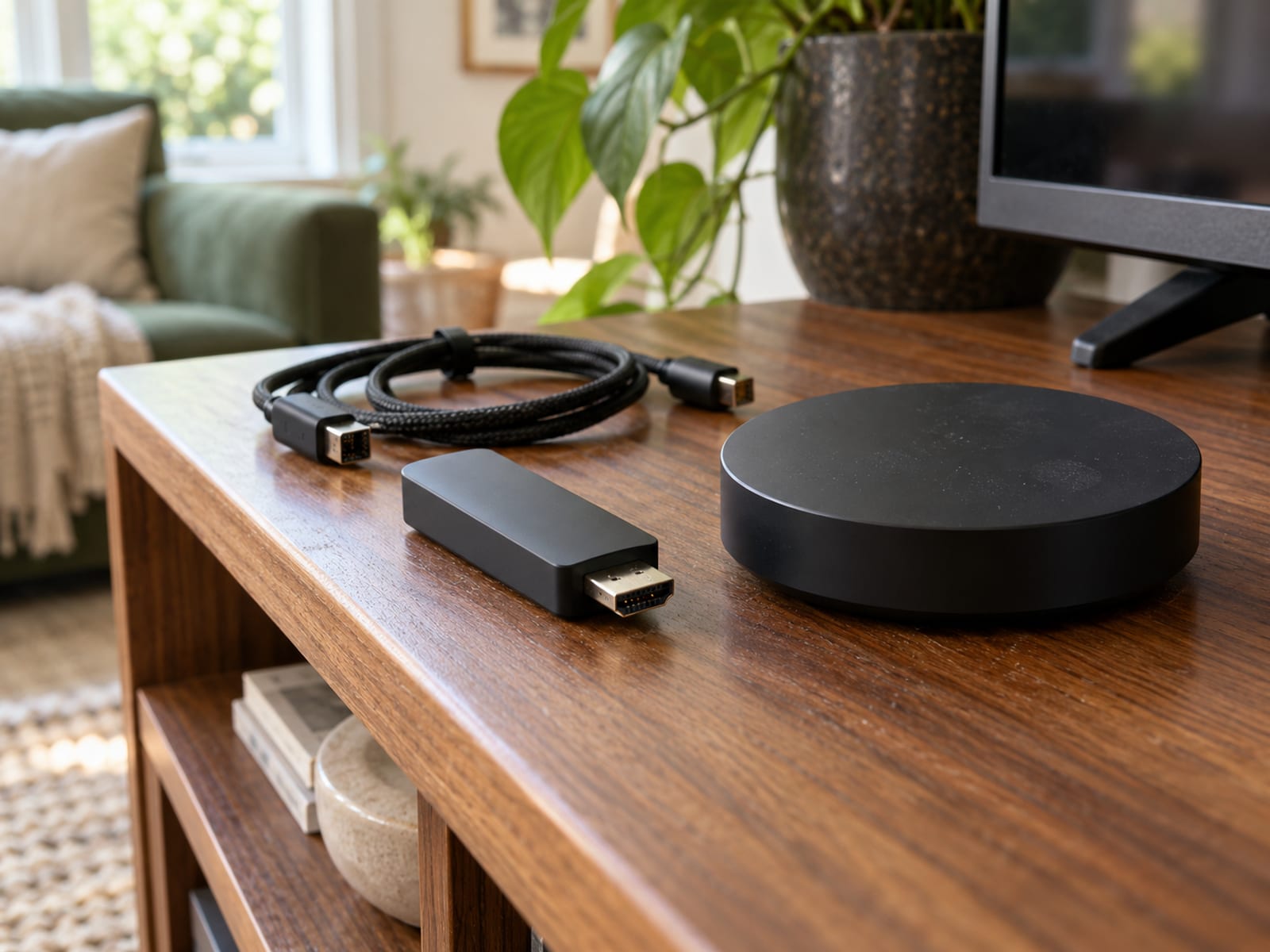
An external streaming device is often the easiest route for Samsung or LG owners. Fire TV and Chromecast with Google TV support compatible VPN apps, so the VPN runs on the HDMI device rather than the TV’s built-in software. The tradeoff is another device, remote, power connection, and possible app differences.
Choose a router when you want the TV and several home devices on one VPN connection. Choose Smart DNS only when supported streaming access is the goal. Choose a streaming device when you want the simplest app-based setup.
What Do the Named VPN Plans Cost and Renew At?
US prices, checked October 28, 2026. Sales tax may apply. Bonus months are separate bonus time, not paid months. Check the renewal amount at checkout before paying, and confirm that automatic renewal is enabled or disabled according to your preference.
The NordVPN and Surfshark terms above are 24 paid months plus 3 bonus months, and the ExpressVPN term is 24 paid months plus 4 bonus months. Bonus time is separate from the paid period.
NordVPN lists a 30-day money-back guarantee for the initial purchase. ExpressVPN states that new subscribers receive a 30-day money-back guarantee, but purchases through the Apple App Store or Google Play Store are excluded. Surfshark states that monthly, 12-month, and 24-month billing options include automatic renewal and a 30-day money-back guarantee for the initial purchase.
A free tier, free trial, and money-back window are different offers. NordVPN’s Android TV page says the app can be downloaded without an upfront charge, but core VPN functions require a subscription. Surfshark documents a seven-day trial connected with qualifying 12-month or 24-month subscriptions. Check the provider’s current terms for eligibility.
What Does a VPN Do, and Does It Not Do, for TV Streaming?
A VPN encrypts the connection between the TV or streaming device and the VPN server. It also changes the IP address that websites and streaming services see. That can change how a service estimates the connection’s location, but it does not guarantee access to every program, event, or catalog.

A VPN does not make a viewer anonymous. The Electronic Frontier Foundation says cookies, GPS, tracking pixels, and browser or device fingerprinting can still identify or track users. Accounts, viewing history, cookies, and device details can remain connected to the person using the service.
VPN routing can reduce available speed because the connection takes an additional path. The result depends on the internet connection, server location, TV, router, and streaming service. A slow connection may affect picture quality or cause buffering.
A router VPN can cover every device connected to that router. A direct app connection is limited by the provider’s device rules. ExpressVPN’s terms state that a paid subscription permits use on up to 14 devices depending on the service tier, while Surfshark advertises unlimited simultaneous connections.
A VPN works alongside software updates, account security, and protection against phishing. It does not replace those measures, and a provider’s privacy policy or audit describes specific policies or systems rather than every form of tracking or security threat.
What Should You Do About Streaming Errors, Netflix Restrictions and Service Terms?
Netflix says that a VPN or proxy can make a device appear to connect from another location and cause an error. Netflix recommends turning the VPN off when it detects one. Netflix also states that VPNs are not supported for live events or ad-supported experiences.
A successful VPN connection therefore does not prove that a streaming app will accept the connection. If Netflix displays a proxy message, work through the Netflix proxy error fixes. If the app works without the VPN but fails after connection, the issue may be the streaming service’s handling of VPN traffic rather than the TV setup.
Local law still applies, as do the terms of the streaming service and VPN provider. Check the law where you live and the current service terms before using a VPN for a particular program or event. A VPN does not cancel geographic restrictions, copyright rules, or account conditions.
How Should You Choose a VPN Before You Pay?
First, match the provider to the TV’s actual platform. Android TV, Google TV, and Fire TV can use a native app when the provider supports the device and software version. Samsung, LG, and Roku usually require a router, hotspot, Smart DNS, or external streaming device. Confirm that the provider supports the exact TV model, not only the brand.
Next, decide what you need the connection to do. A router VPN or native VPN app provides encrypted VPN routing for the TV. Smart DNS may suit a supported streaming-location use, but it does not encrypt traffic. If you want the TV and several other devices on one connection, check router compatibility and consider how the VPN will affect those devices.
Check the intended streaming services before paying. Netflix states that VPNs are not supported for live events or ad-supported experiences, and a VPN can trigger a proxy or location error. The provider’s performance and compatibility statements are claims, so check current supported services, app availability, refund terms, and setup instructions.
Compare the full billing details, not only the introductory monthly figure. Check the amount due upfront, paid term, bonus time, renewal price, automatic renewal, device limit, free tier, free trial, and money-back window. These are separate details. A free download does not mean the VPN service is free.
The conditional pick is simple. Choose a native app provider when your TV runs Android TV, Google TV, or Fire TV and you want direct setup. Choose a provider with router support when you have Samsung, LG, or Roku and want full VPN routing. Choose Smart DNS only when its limits fit your goal. If the TV platform is the main obstacle, an external Fire TV device may be easier than changing the router. For that route, use How to Use a VPN on a Fire Stick.
Frequently asked questions
The answers below cover the most common setup and buying questions.
How do you set up a VPN on your smart TV?
If the TV runs Android TV, Google TV, or Fire TV, install a compatible VPN app from the official app store, sign in, and connect. For Samsung, LG, or Roku, use a compatible router, VPN-enabled hotspot, Smart DNS where supported, or an external streaming device.
Do smart TVs have a built-in VPN?
It depends on the operating system. Android TV supports VPN apps, while Samsung Tizen, LG webOS, and Roku generally do not support native VPN apps. Network or DNS settings on a Samsung or LG TV are not the same as a built-in VPN service.
Which VPN is compatible with smart TVs?
Compatibility depends on the platform and software version. Provider documentation lists native apps for Android TV, Google TV, and Fire TV, while Samsung and LG generally need a router, hotspot, Smart DNS, or external streaming device.
How do I know if my TV has a VPN?
Open Settings and look for the operating-system name, then search the TV’s app store for the provider’s official app. Google Play availability suggests an Android TV or Google TV route. A Samsung Tizen or LG webOS TV may show network and DNS settings without supporting a native VPN app.
How do I install a VPN on my TV?
Use the official app store on Android TV, Google TV, or Fire TV. For Samsung, LG, and Roku, install or configure the VPN on a compatible router, hotspot, or external streaming device, then connect the TV to that protected network.
Does Samsung have a built-in VPN?
Samsung Smart TVs generally do not have a built-in VPN feature or native VPN-app support. Use a compatible router, VPN-enabled hotspot, supported Smart DNS, or an external streaming device.
How do you run your smart TV through a VPN?
Connect the TV to a router running the VPN or to a VPN-enabled hotspot. A native VPN app can protect Android TV, Google TV, or Fire TV directly. Roku requires a VPN router or another VPN-protected network.
Is it legal to use a VPN to watch TV?
VPN legality depends on the law where you live and the terms of the services you use. A VPN does not override a streaming service’s restrictions, and Netflix says VPNs are not supported for live events or ad-supported experiences.
Should you put a VPN on your TV?
Use one when the TV platform supports it and you want the TV’s traffic to use VPN routing. For Samsung, LG, and Roku, a router is the fullest option, while Smart DNS fits only a supported streaming-access goal because it does not encrypt traffic.
Which free VPN can you use on a smart TV?
A free VPN must support the exact TV platform, intended streaming service, data needs, and speed requirements. Check whether the provider has a free tier rather than assuming that a free app download includes VPN service. A free tier, free trial, and money-back window have different conditions.
How do you download a free VPN for TV?
On Android TV, Google TV, or Fire TV, search the official app store and check whether the provider offers a free tier or trial for that platform. Samsung, LG, and Roku usually cannot install VPN apps directly, so use a router, hotspot, Smart DNS, or external streaming device instead.
Your next step is to identify the TV operating system, confirm the provider’s current setup path, and compare the renewal amount with the way you plan to use the service. If the choice is between putting the VPN on the router or on one device, use VPN on Your Router or Your Devices: Which Is Better.
Glossary
Find more VPN guides on Tunnel Verdict. Have a question about your own setup? Contact us and include your device and the VPN you use.